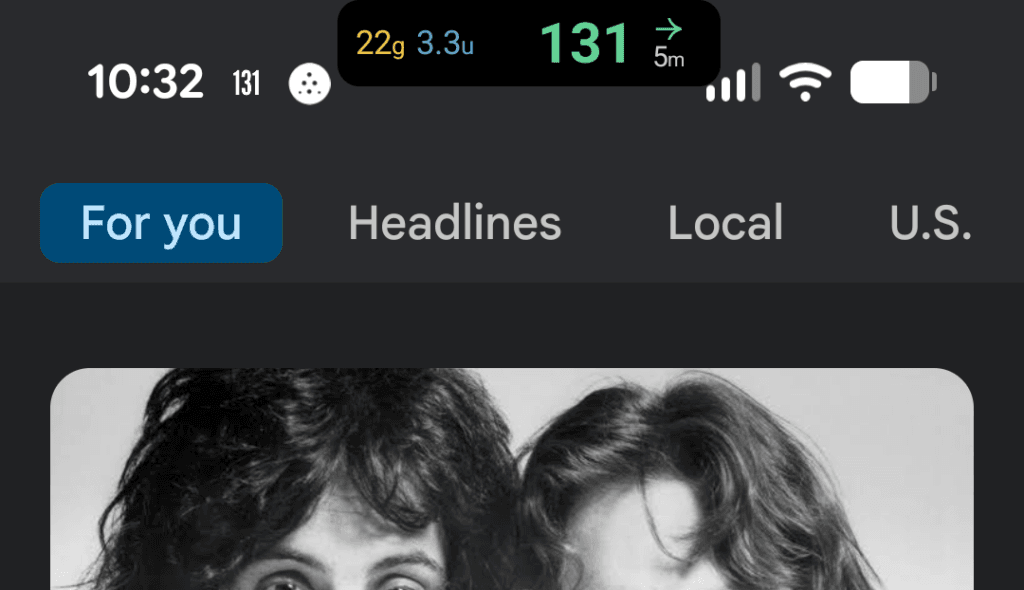
The Always-on CGM Display shows your current blood glucose in a small floating chip that stays on top of whatever else you are doing on your Android phone — your home screen, another app, or a game. It is a quick, always-visible glance at your latest reading without opening Gluroo.
How it differs from Lock Screen & Status Bar
The Always-on CGM Display is not the same as the Lock Screen & Status Bar feature (found under Show CGM On… > Lock Screen & Status Bar).
- Always-on CGM Display is a floating overlay that draws on top of other apps while your phone is unlocked and in use. It works on a wide range of Android phones.
- Lock Screen & Status Bar uses Android’s system Live Update notifications to show your glucose on the lock screen and status-bar chip. It requires Android 16 or newer and does not work on Samsung One UI.
Turning it on and granting permission
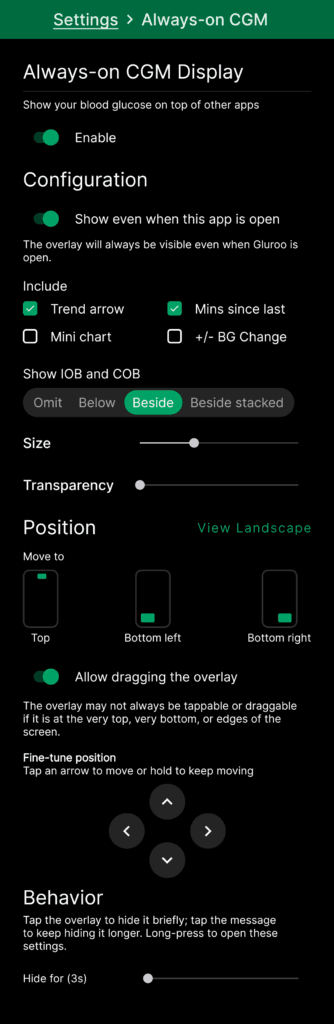
Open Gluroo and go to Settings > Show CGM On… > Always-on CGM, then turn on Enable.
The first time you enable it, Android needs to give Gluroo permission to draw over other apps. Gluroo will show a Grant permission for Gluroo App button. Tap it, find Gluroo in the system list, and turn on the “Display over other apps” (also called “Appear on top”) permission. When you return to Gluroo, the overlay starts automatically.
By default the overlay hides itself while Gluroo is the app in front. Turn on Show even when this app is open if you want it visible at all times. (On the Always-on CGM settings screen the overlay always stays visible so you can preview your changes.)
Choosing what to show
Under Include you can add or remove elements from the chip:
- Trend arrow — the direction your glucose is heading.
- Mins since last — how long ago the reading arrived.
- Mini chart — a compact recent-history graph.
- +/- BG Change — the change since the previous reading.
You can also choose whether IOB and COB appear (Omit, Below, Beside, or Beside stacked) and adjust the overlay’s Size and Transparency with the sliders.
Positioning the overlay
There are three ways to place the chip where you want it.
- Move to — tap Top, Bottom left, or Bottom right to snap the overlay to a preset spot. The top position shrinks the chip so it tucks neatly beside the camera cutout; the bottom positions are larger since there is more room.
- Drag it — with Allow dragging the overlay turned on, you can press and drag the chip anywhere on screen.
- Fine-tune position — use the on-screen arrow pad (joystick) to nudge the overlay one step at a time; tap an arrow to move, or hold it to keep moving.
About the screen edges: Android does not let a floating overlay be dragged right up to the very top, very bottom, or side edges of the screen — in those areas the chip may not be draggable (or even tappable). If you want the overlay tucked into a corner or along an edge, first drag it as close as you can, then use the Move to buttons and the Fine-tune position arrows to nudge it precisely into place.
Dismissing and temporarily disabling
- Tap to hide briefly — a single tap on the overlay hides it for a short time (you can set this duration with the Hide for slider). It reappears on the next reading or after the timeout.
- Tap the message to hide longer — when the overlay shows a message, tapping it keeps it hidden for a longer stretch.
- Drag off-screen to disable for the day — drag the chip off the edge of the screen to dismiss it for the rest of the day. It comes back the next day, or you can re-enable it any time from the Always-on CGM settings.
- Long-press to open settings — press and hold the overlay to jump straight to this settings screen.
Multiple GluCrews
The Always-on CGM Display shows one person at a time. If you follow more than one GluCrew, turning the overlay on for one group turns it off for the others.
Important
Do not use Gluroo for dosing or other medical decisions. Always confirm your glucose with your CGM app or a fingerstick before acting.
Got an iPhone?
Check out our CGM Blood Sugar display on iPhone Everywhere for how Gluroo and GotCGM use Live Activities to provide similar functionality